For people who produce CGIs for clients
Put your design into the real photo
Upload a site photo and a screenshot of your 3D model. Linar lines them up, applies your materials and returns a finished CGI built into the real scene. No rendering, no Photoshop.
No card needed. Free renders are watermarked.
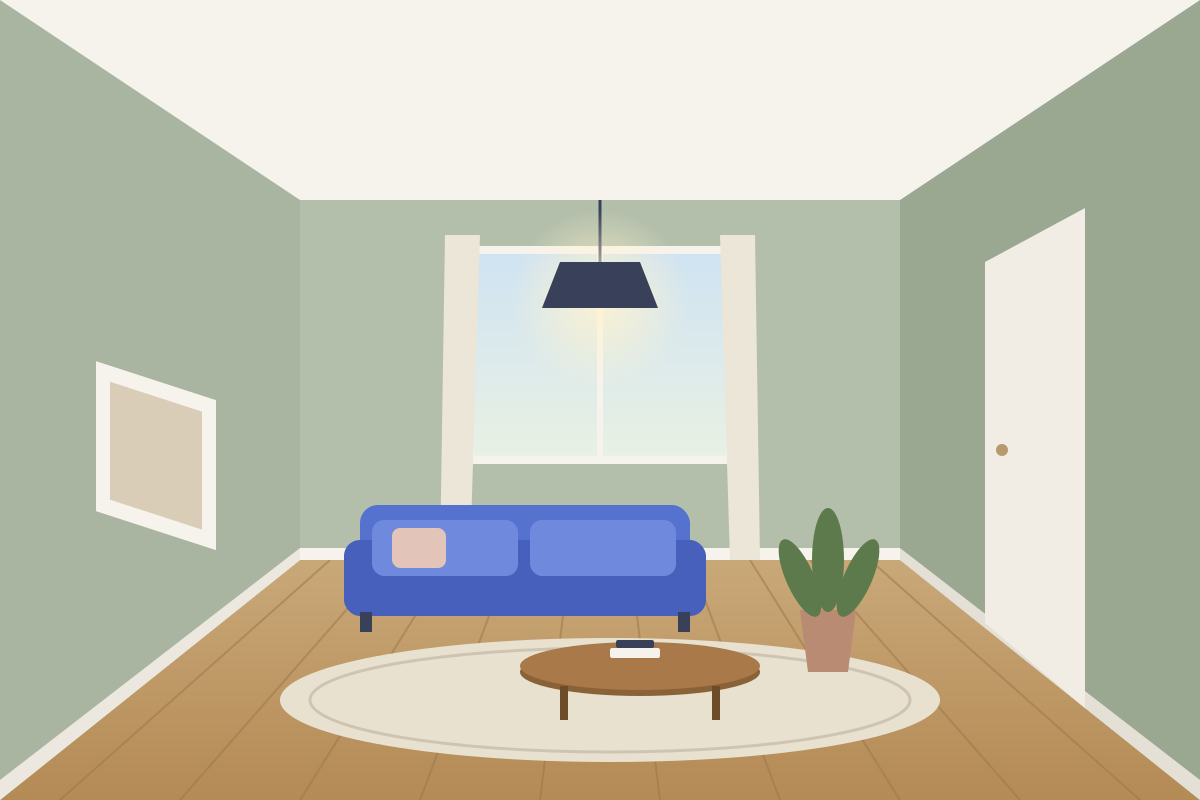
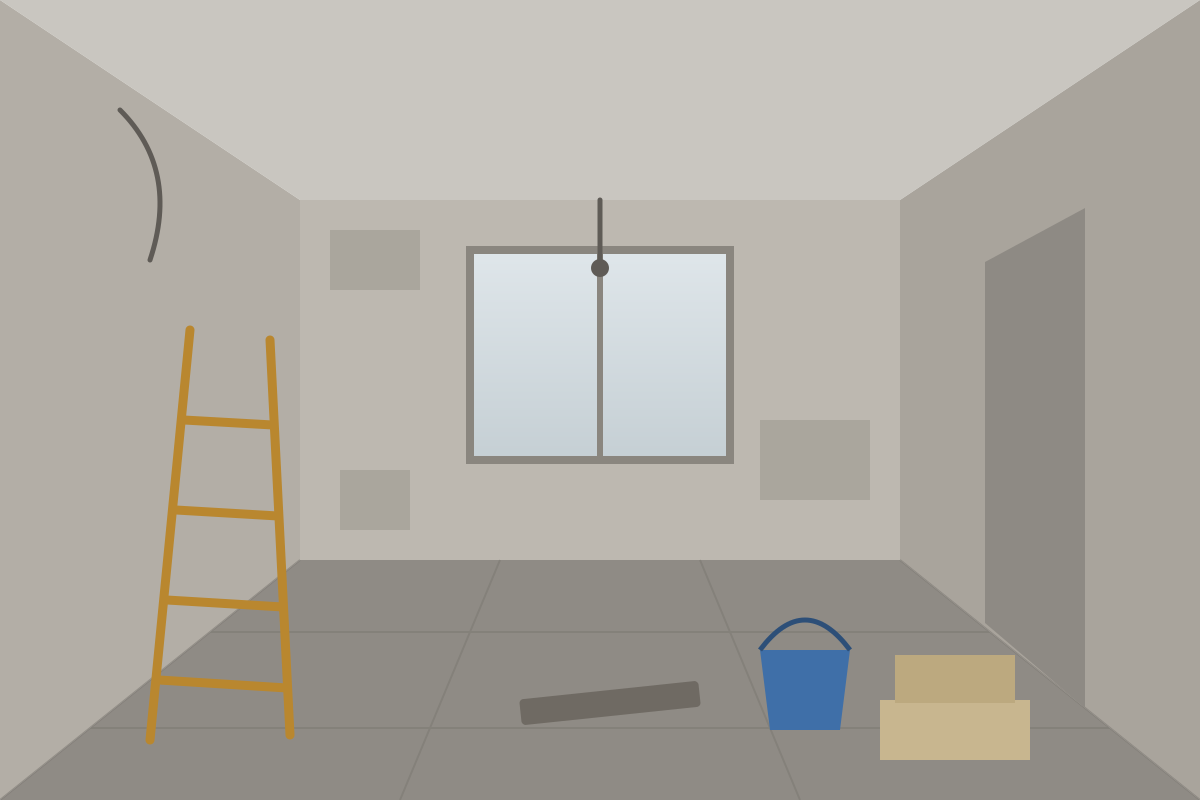
Placeholder illustration, not a Linar output. Example images are on their way.
How it works
The step between your model and a finished image used to be a render, then hours in Photoshop. Linar replaces that step.
- Step 1
Upload your photo
A real photo of the site or the room. Linar straightens verticals, levels the horizon and balances the exposure.
- Step 2
Drop in your model
A screenshot of your 3D model from roughly the same viewpoint. Any 3D software will do.
- Step 3
Align and assign materials
AI gives a first-guess alignment and you fine-tune it. Then say which material goes where.
- Step 4
Render
Get a photorealistic image with your design built into the real scene and lit to match. Refine it in plain English.
Who it's for
Architects
Extensions, new houses on existing sites, and feasibility options shown in context, on the day of the site visit.
Interior designers
Present a scheme in the client's actual room, with the materials you have specified.
Developers and housebuilders
Show a plot, a street scene or a show home before it is built, on the real site.
Property marketers
Brochure and listing imagery from the photography and models you already have.
Control where it matters
Photo straightening and enhancement
Correct converging verticals, level the horizon and balance exposure. One click, or manual controls.
AI-assisted alignment, precise by hand
Auto-align gives a starting point. Four-corner pins, point pairs and keyboard nudges get it exact.
Colour ID material mapping
Export a flat-colour view of your model and assign a real material to each colour. Or paint zones by hand.
Exterior and interior
The same workflow for an extension on a street, a new house on a plot, or a kitchen in an existing room.
Iterate in plain English
Ask for a change and get a new version. Your model's geometry and the photograph stay fixed.
4K downloads, projects and teams
Download in JPG, PNG or WebP. Keep renders in projects. Studio adds shared seats and credits.
Simple pricing
One credit is one finished image: the build and its finish. Photo enhancement and alignment are included. Start free.
Free
£0forever
3 credits in total, never renewed
Starter
£29a month
30 credits a month
Pro
£79a month
100 credits a month
Studio
£199a month
300 credits a month
Questions and answers
What 3D software does it work with?
Any that can export an image of your model: SketchUp, Revit, ArchiCAD, Rhino, Vectorworks, Blender, 3ds Max and others. Linar works from a screenshot or an exported view, so there is nothing to install and no file format to convert.
How do I export a colour ID view?
Save the same view twice at the same size: once as normal, and once with every material shown as a single flat colour, with shadows, textures and edge lines switched off. In SketchUp that is a style with shaded faces and no edges. In Revit or ArchiCAD, use a view with solid colour overrides by material. Linar detects each colour and lets you assign a material to it.
Can I use the images for planning?
Linar produces marketing and design visuals. They are not verified views or accurate visual representations, and Linar does not survey camera positions or certify accuracy. If you need images for a planning submission, follow a recognised methodology yourself and treat Linar's output as illustrative only.
Will it change my design or the photo?
The photo: no. Everything outside the area you mark as new work is put back from your original photo, pixel for pixel, by Linar itself, not by the AI. Your design: the AI is told to follow the model's shape, openings and proportions as drawn, and it usually does, but it is AI, so check each image against your drawings before it goes to a client. If something is off, adjust the alignment or materials and render again, or describe the change.
What is a credit?
One credit produces one finished image. A render is made in two steps, Build and Finish: the Build puts your design into the photo, and its first Finish (light, atmosphere and landscaping) is included in the same credit. Trying another Finish on the same Build, rebuilding, or describing a change in plain English each use one more credit. Photo enhancement and auto-align are included and do not use credits. Downloads and ZIP exports are free.
What happens to unused credits?
Paid plans reset to the full monthly allowance at the start of each billing month. Unused credits do not roll over. The three free credits are a one-off and do not reset.
Where do the materials come from?
The Linar library is made of real photographic textures released under the CC0 licence by Poly Haven and ambientCG. You can also upload a photo of your own sample or product, or simply describe the material in words.
Who owns the images, and is my data private?
You do. You keep the rights to what you upload and you may use your renders commercially. Uploads and renders are kept in private storage, visible only to you and your team, and location data is removed from photos on upload. Free plan renders carry a Linar watermark.
What resolution are the renders?
Free renders are 1024 px on the long edge. Paid plans can download at 1024, 2048 or 3840 px (4K). Where the image model's native output is smaller than the size you choose, the image is upscaled.
Your next design, in its real setting
Three free renders. No card, no sales call.
Start free: 3 renders